Free · No sign-up · No watermark · No upload
How to Add Text to a PDF
To add text to a PDF for free, open the file in EditFreePDF, select the Text tool, click the exact spot where the text should appear, and type. Set the size and color, then download the PDF — free, watermark-free, and processed entirely in your browser.
Tool details: Add Text to PDF
How to Add Text to a PDF — step by step
- 1
Open your PDF
Drag the file onto editfreepdf.com — it opens instantly, no account needed.
- 2
Select the Text tool
Click Text in the toolbar. Your cursor becomes a text cursor over the page.
- 3
Click and type
Click anywhere — a text box appears where you clicked. Type your text, choose size and color, and drag it to fine-tune the position.
- 4
Download
Click Download to save the PDF with your text permanently embedded.
See it in action
The actual editor — no install, it runs right in your browser.
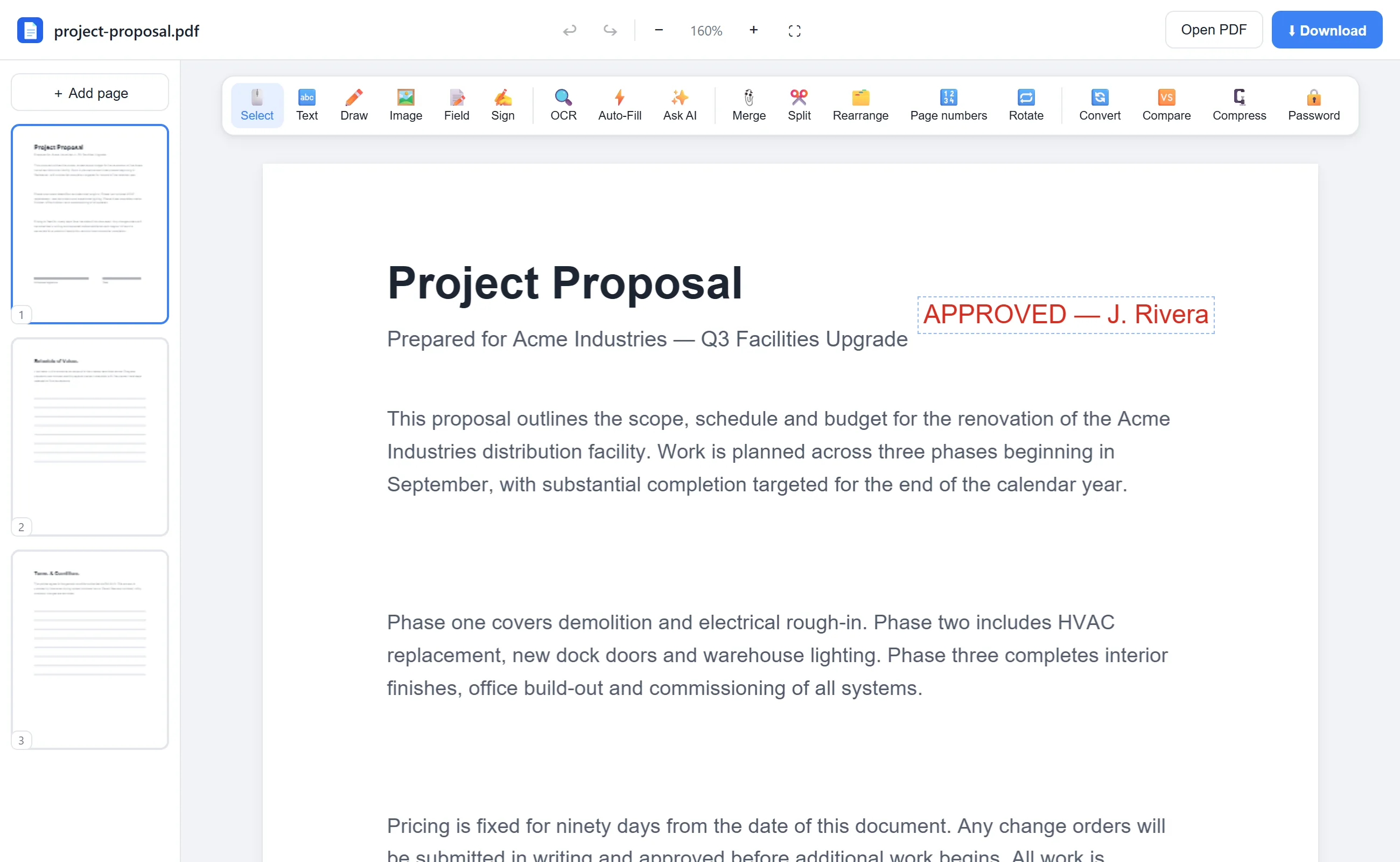
What you can do with EditFreePDF
- Type text at any position on any page
- Choose font size and color
- Edit or move text boxes before download
- Fill in blanks on printed-style forms
- Type over scans (run OCR to make the scan searchable too)
All of it free — no account, no watermark, no upload. Your file is processed locally in your browser.
Frequently asked questions
Can I add text to a PDF for free without watermarks?
Yes. Adding text is free and the downloaded file never carries a watermark.
Can I match the existing font?
You can adjust size and color to blend in closely. Exact font matching depends on the original document's typeface.
Can I remove text I added?
Yes — until you download, every text box can be edited, moved or deleted. Use Undo (Ctrl+Z) as well.