Free · No sign-up · No watermark · No upload
How to Make a Scanned PDF Searchable
To make a scanned PDF searchable for free, open it in EditFreePDF and run the OCR tool. It recognizes the text in each scanned page and embeds an invisible text layer, so the document looks identical but becomes searchable, selectable and copyable. OCR runs entirely in your browser — the scan is never uploaded.
Tool details: OCR PDF
How to Make a Scanned PDF Searchable — step by step
- 1
Open the scanned PDF
Drag the scan onto editfreepdf.com — contracts, receipts, book chapters, photographed pages.
- 2
Run OCR
Click OCR, choose the document's language, and click Run OCR. The engine downloads once, then recognition runs on your device.
- 3
Wait for recognition
Each page is processed in turn with a progress indicator. A typical page takes a few seconds.
- 4
Download the searchable PDF
Click Download. The PDF now supports Ctrl+F search and text selection. Optionally export all recognized text as a .txt file.
See it in action
The actual editor — no install, it runs right in your browser.
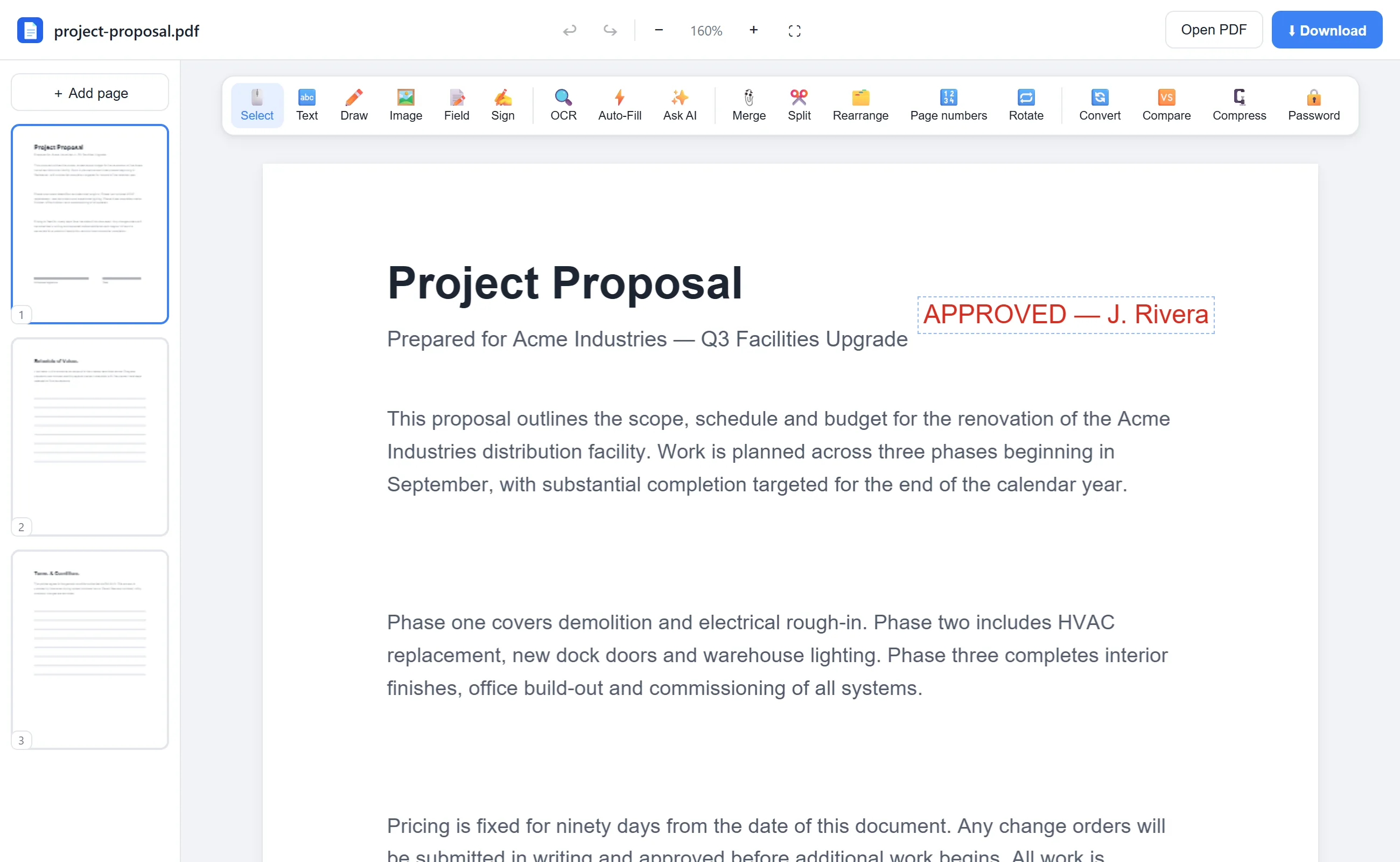
What you can do with EditFreePDF
- Make scans searchable with Ctrl+F
- Copy text out of photographed documents
- Recognize 8 languages
- Export recognized text as .txt
- Then edit, sign or annotate the scan like any PDF
All of it free — no account, no watermark, no upload. Your file is processed locally in your browser.
Frequently asked questions
What does “searchable PDF” mean?
A scanned PDF is just pictures of pages. OCR adds an invisible text layer over those pictures, so search, text selection and copy/paste start working.
Is there really no upload?
Correct — the Tesseract OCR engine runs inside your browser via WebAssembly. Sensitive scans like IDs and medical records never leave your device.
Why is some text not recognized?
Low-resolution scans, handwriting and decorative fonts are hard for any OCR. Rescanning at higher resolution improves results significantly.