Free · No sign-up · No watermark · No upload
How to Compress a PDF for Email
To compress a PDF for email, open it in EditFreePDF, click Compress, choose a quality level, and download the smaller file — the tool shows the exact before/after size so you know it fits your email limit. It's free, has no size caps, and the file is compressed locally without being uploaded.
Tool details: Compress PDF
How to Compress a PDF for Email — step by step
- 1
Open the oversized PDF
Drag the file onto editfreepdf.com — scans and image-heavy documents shrink the most.
- 2
Choose quality
Click Compress. Pick a quality level and resolution — 60% quality at “Good” resolution is a solid starting point for email.
- 3
Check the size
The tool reports the result, e.g. “18,240 KB → 2,110 KB (88% smaller)” — so you know it's under your 10 MB or 25 MB limit.
- 4
Download and attach
The compressed copy downloads immediately, ready to attach to your email.
See it in action
The actual editor — no install, it runs right in your browser.
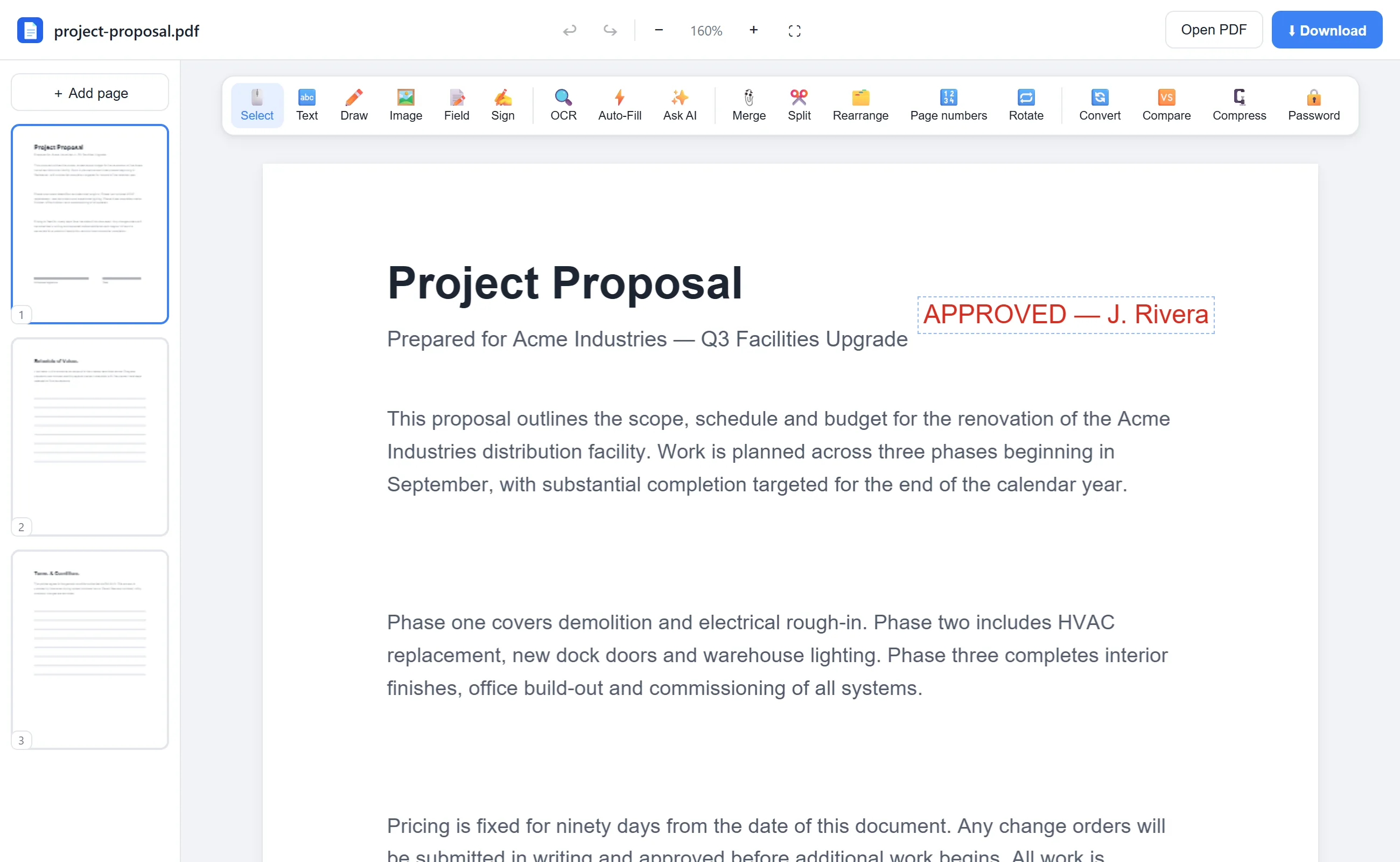
What you can do with EditFreePDF
- Shrink scans by 70–90%
- Adjust quality and DPI to hit a target size
- See exact before/after sizes
- Compress unlimited files, any size
- Split the PDF instead if you need selectable text
All of it free — no account, no watermark, no upload. Your file is processed locally in your browser.
Frequently asked questions
What's the email attachment size limit?
Gmail and Yahoo allow 25 MB; Outlook commonly 20 MB; many company servers only 10 MB. Compressing below 10 MB is the safe universal target.
Will the compressed PDF still look good?
At 60–80% quality, scans remain clearly readable. If it's going to be printed, use a higher quality setting.
What if my PDF is still too big?
Split it into parts with the free Split tool and send them in separate emails, or share a download link instead.