Free · No sign-up · No watermark · No upload
How to Split a PDF into Separate Files
To split a PDF for free, open it in EditFreePDF, click Split, and enter page ranges such as 1-3, 4-6, 7. Each range becomes its own PDF and everything downloads together in one ZIP. It's free, unlimited, and the file never leaves your browser.
Tool details: Split PDF
How to Split a PDF into Separate Files — step by step
- 1
Open the PDF
Drag the document onto editfreepdf.com.
- 2
Enter page ranges
Click Split and type the ranges you want, separated by commas — e.g.
1-5, 6-10, 11. - 3
Download the ZIP
Each range is saved as a separate PDF, bundled into one ZIP named by page numbers.
- 4
Or extract visually
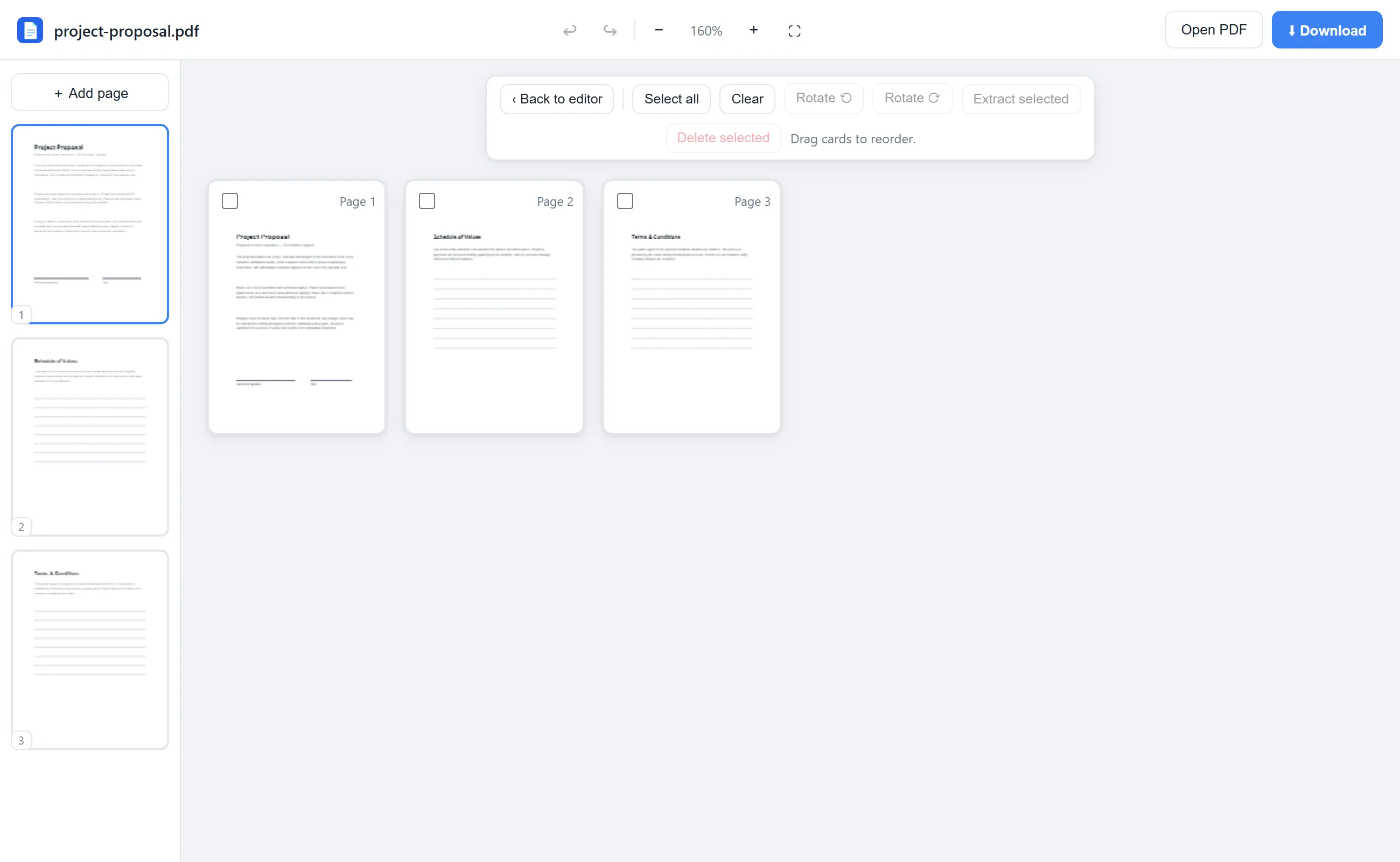
Prefer clicking? Open Rearrange, tick the pages you want, and hit Extract selected.
See it in action
The actual editor — no install, it runs right in your browser.
What you can do with EditFreePDF
- Split by any page ranges
- Extract single pages
- Select pages visually with checkboxes
- Delete unwanted pages instead
- Lossless page copies — no quality loss
All of it free — no account, no watermark, no upload. Your file is processed locally in your browser.
Frequently asked questions
How do I save just one page of a PDF?
Either enter that page number as a range in Split, or tick it in the Rearrange view and click Extract selected.
Can I split a very large PDF?
Yes — there are no page limits. Processing runs on your own device, so even long documents work.
Does splitting cost anything?
No. Splitting, extracting and every other tool on EditFreePDF is free with no sign-up.