Free · No sign-up · No watermark · No upload
How to Convert JPG Images to a PDF
To convert JPG to PDF for free, open EditFreePDF, click Convert, choose Images → PDF, and select your JPG or PNG files. Each image becomes one page and a single PDF downloads immediately — original quality, no upload, no watermark.
Tool details: JPG to PDF
How to Convert JPG Images to a PDF — step by step
- 1
Open the editor
Go to editfreepdf.com — you don't even need an existing PDF; open any file to reveal the toolbar, or start from the Convert option after opening one image-PDF.
- 2
Choose Images → PDF
Click Convert and then Choose images under Images → PDF.
- 3
Select your images
Pick any number of JPG or PNG files in the order you want them to appear.
- 4
Download the PDF
A single PDF downloads with one image per page at full resolution. Reopen it to reorder pages, add text or page numbers.
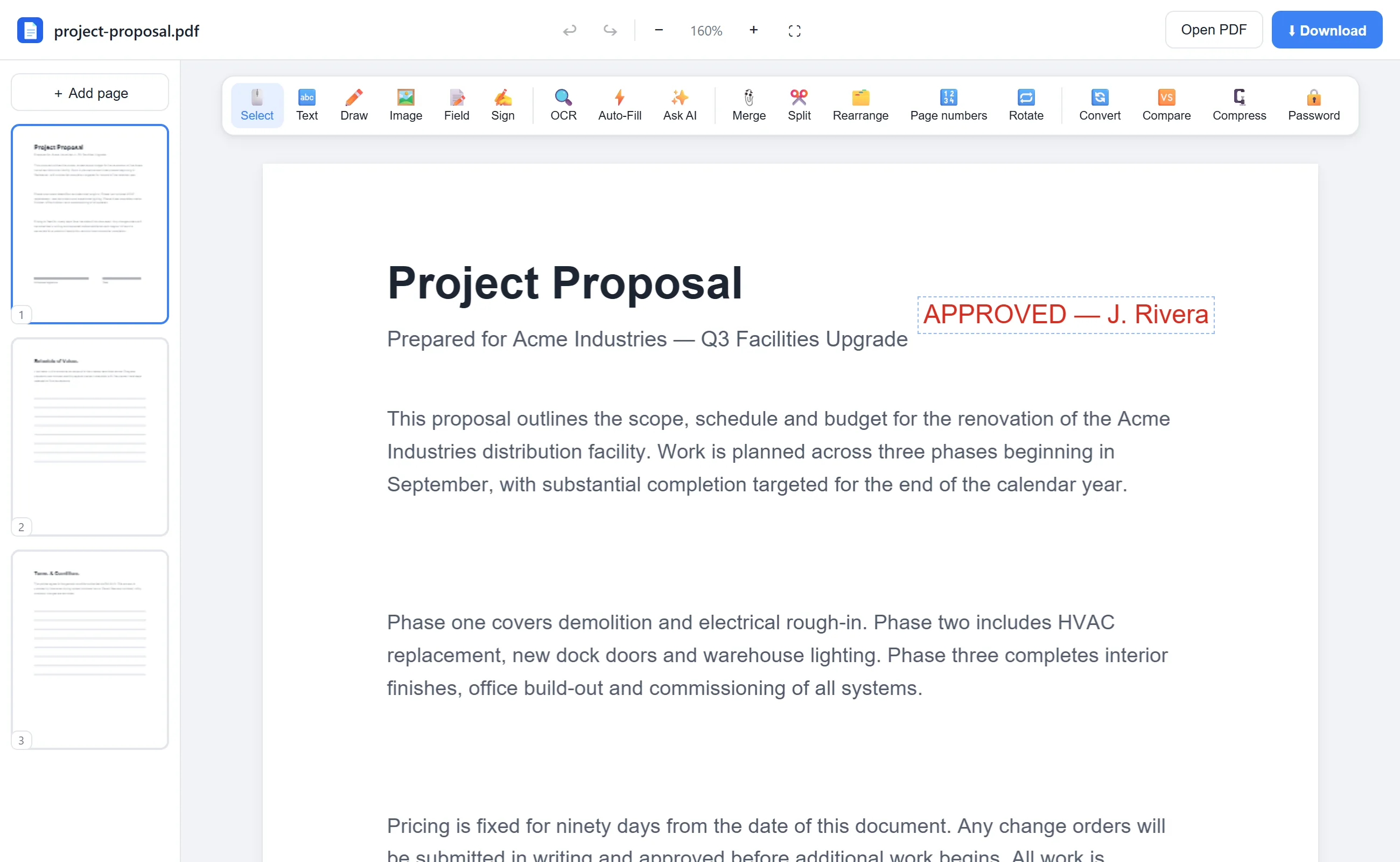
See it in action
The actual editor — no install, it runs right in your browser.
What you can do with EditFreePDF
- Turn phone photos of documents into one PDF
- Combine JPG and PNG in one file
- Keep original image quality
- Reorder pages after converting
- Add labels, page numbers or a signature afterwards
All of it free — no account, no watermark, no upload. Your file is processed locally in your browser.
Frequently asked questions
How do I put multiple pictures into one PDF?
Select them all together in the Images → PDF dialog — each becomes a page, in the order selected.
Will my photos be compressed?
No — images are embedded at their original resolution with no re-compression.
Can I rearrange the pages afterwards?
Yes. Open the new PDF in the editor and use Rearrange to drag pages into a different order.