Free · No sign-up · No watermark · No upload
How to Delete Pages from a PDF
To delete pages from a PDF for free, open it in EditFreePDF, click Rearrange, tick the pages you don't want, and click Delete selected. Download the cleaned-up PDF — free, with no upload and no watermark.
Tool details: Delete PDF Pages
How to Delete Pages from a PDF — step by step
- 1
Open the PDF
Drag your file onto editfreepdf.com.
- 2
Select the unwanted pages
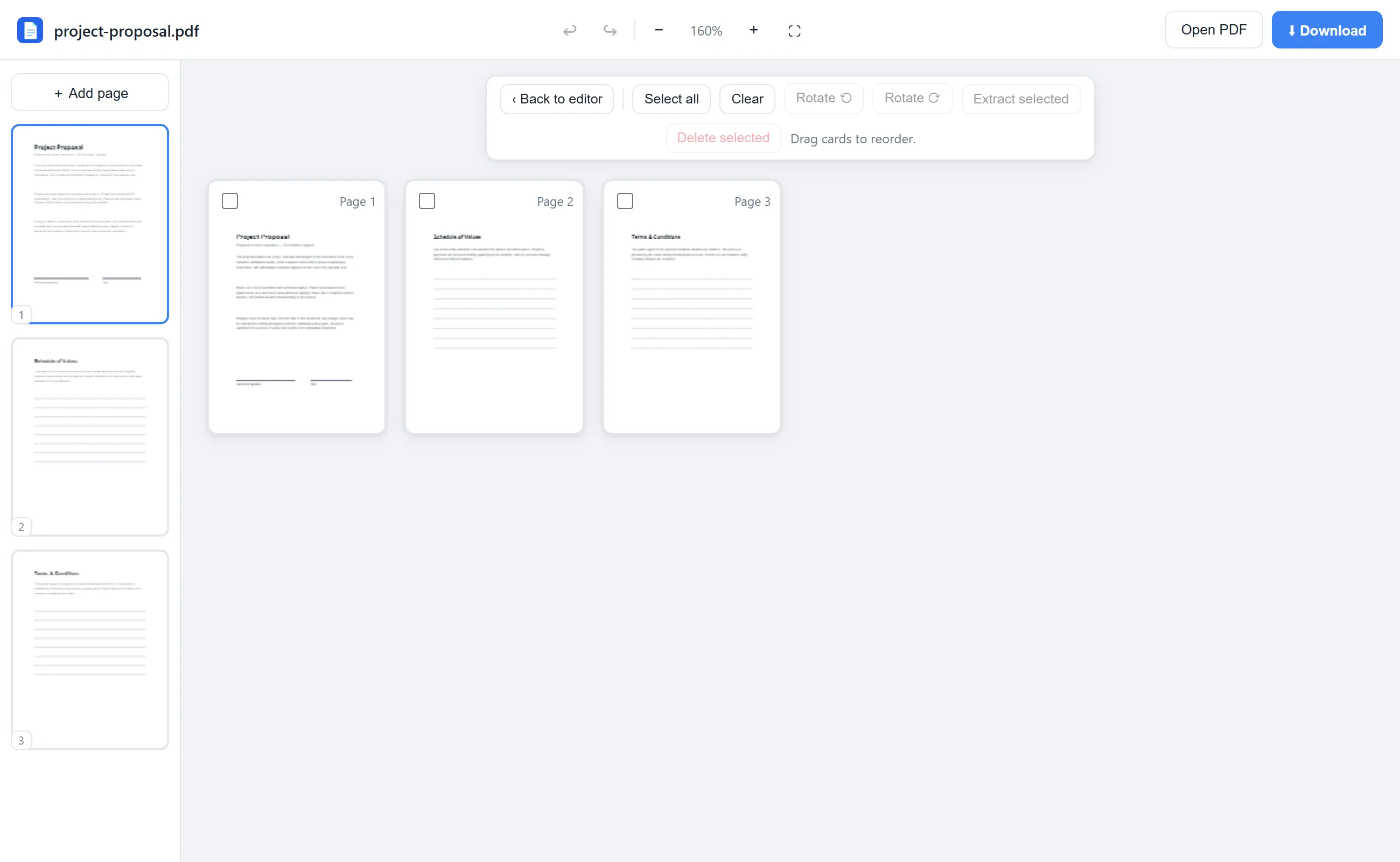
Click Rearrange and tick the checkbox on each page to remove — blank pages, duplicates, outdated sections.
- 3
Delete
Click Delete selected and confirm. Deleted the wrong one? Ctrl+Z brings it back.
- 4
Download
Click Download for the smaller, cleaner PDF.
See it in action
The actual editor — no install, it runs right in your browser.
What you can do with EditFreePDF
- Delete any pages visually
- Quick single-page delete from the sidebar (hover → ✕)
- Keep-only-these instead: select and Extract
- Undo restores deleted pages
- File size drops with the removed pages
All of it free — no account, no watermark, no upload. Your file is processed locally in your browser.
Frequently asked questions
How do I delete one page from a PDF?
Hover over that page's thumbnail in the sidebar and click the ✕ — or select it in the Rearrange view and click Delete selected.
Can I delete all pages except a few?
Select the pages you want to keep and click Extract selected instead — you'll get a new PDF with just those pages.
Is deleting pages free?
Yes — free, unlimited, no account, and the file never leaves your browser.