Free · No sign-up · No watermark · No upload
How to Remove a Password from a PDF
To remove a password from a PDF you're authorized to unlock, open EditFreePDF, click Password, switch to Remove password, choose the locked file and enter its current password. A decrypted copy downloads instantly — processed locally, never uploaded.
Tool details: Unlock PDF
How to Remove a Password from a PDF — step by step
- 1
Open the Password tool
Go to editfreepdf.com, open any PDF to reveal the toolbar, and click Password → Remove password.
- 2
Choose the locked file
Click Choose locked PDF… and select the encrypted document.
- 3
Enter the current password
Type the password you normally use to open it — this proves you're authorized.
- 4
Download the unlocked copy
Click Apply & download. The decrypted PDF opens anywhere with no password prompt.
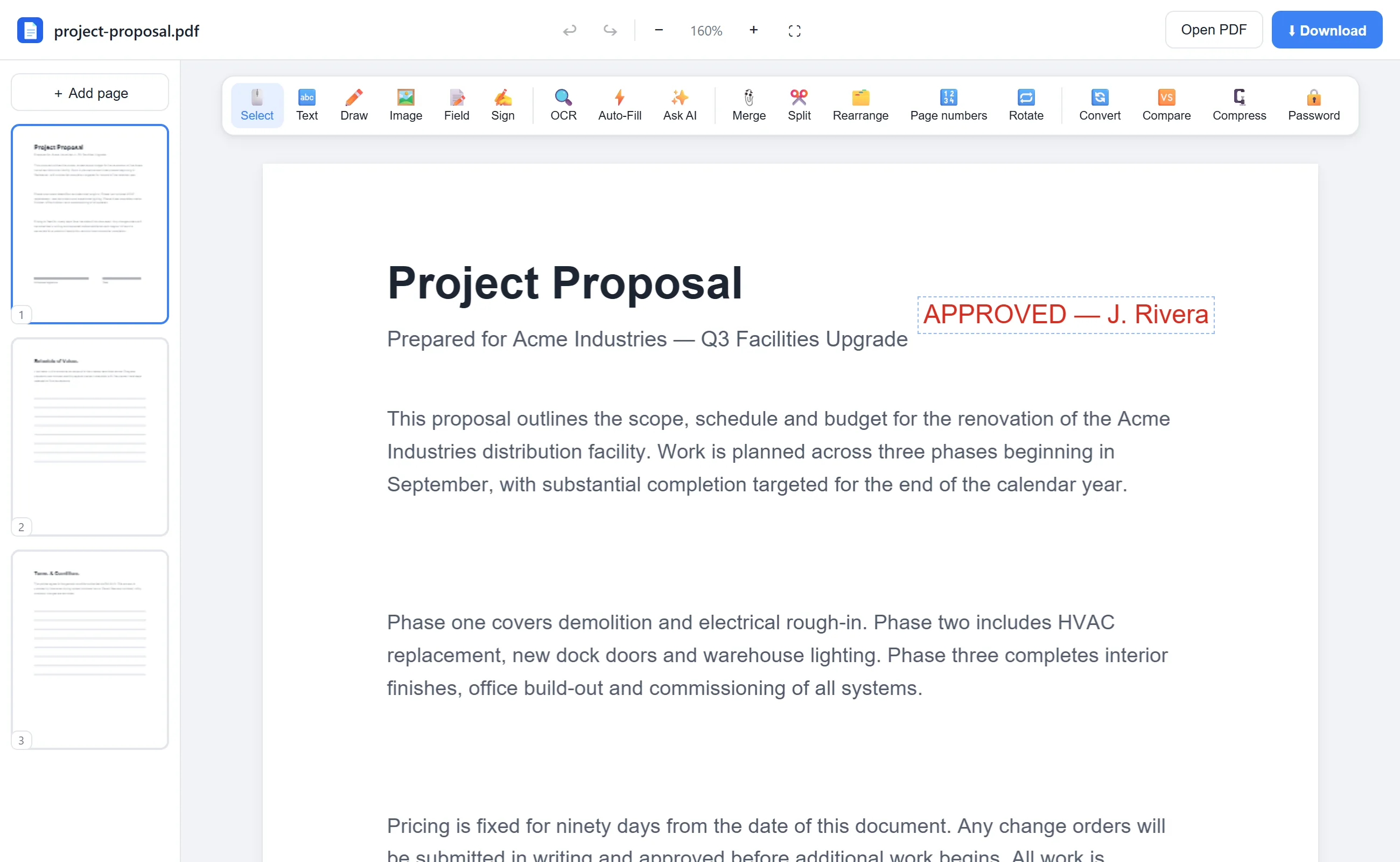
See it in action
The actual editor — no install, it runs right in your browser.
What you can do with EditFreePDF
- Unlock bank statements and payslips you receive monthly
- Store documents password-free in your own secure storage
- Local decryption — the file and password never leave your browser
- Identical quality, just no encryption layer
All of it free — no account, no watermark, no upload. Your file is processed locally in your browser.
Frequently asked questions
Can I unlock a PDF without knowing the password?
No. This tool removes protection only when you enter the correct current password — it does not crack or bypass encryption.
Why do banks password protect PDFs?
Statements often use your date of birth or account digits as a password for email safety. Once saved in your own secure storage, many people prefer them unlocked.
Is it safe to unlock sensitive files here?
Yes — decryption runs in your browser via WebAssembly. Nothing is uploaded, which is exactly what you want for financial documents.